


Security staff scheduling
Every campus, every building, every post covered
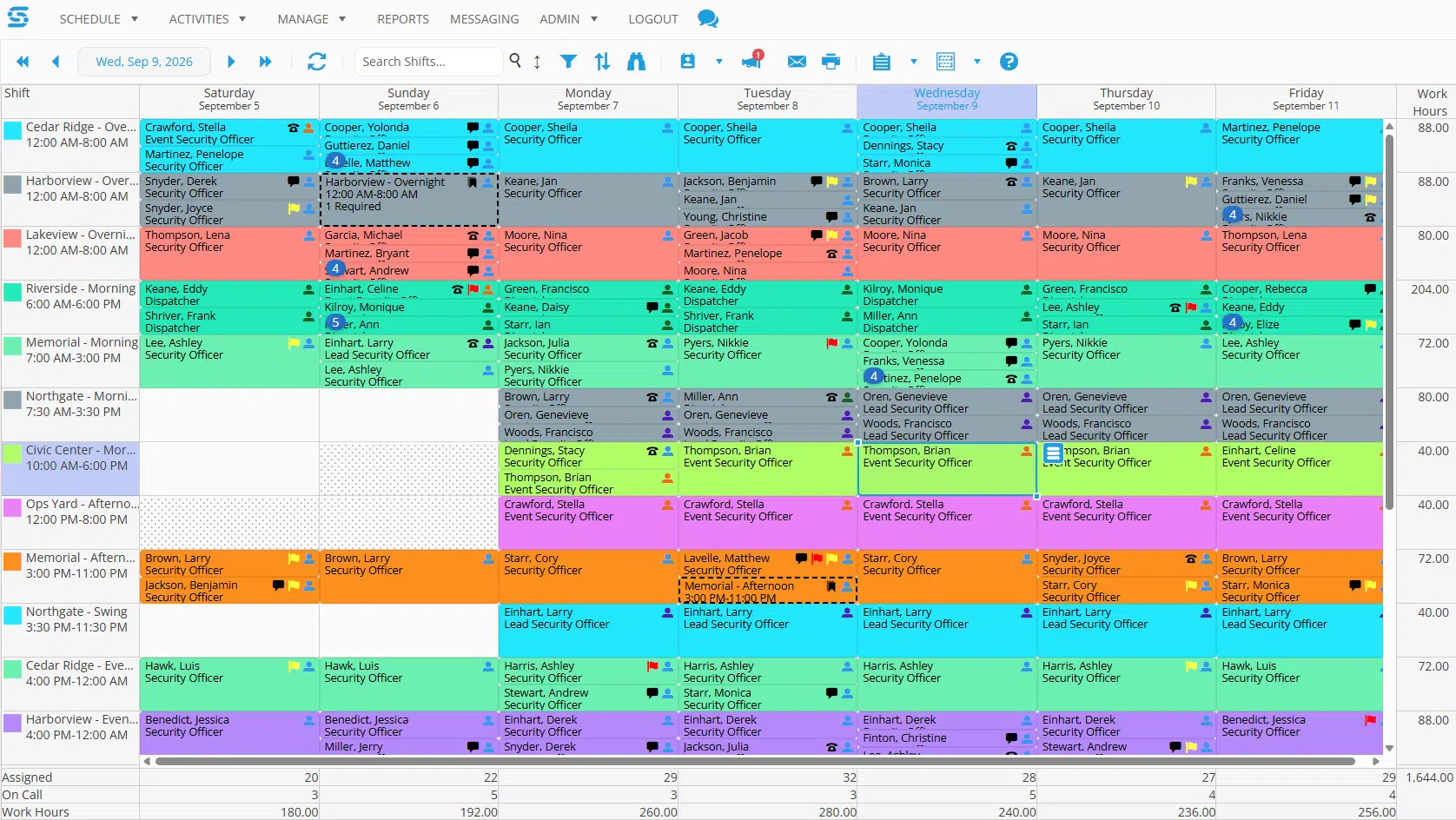
Snap Schedule 365 schedules in-house security staff for school districts, health systems, colleges, public agencies, parks and airports. Build the rotation once, see coverage gaps before the shift starts, and keep a timestamped record of who was scheduled, who showed up, and where they punched in.
You license schedulers, not headcount — one scheduler license covers an unlimited number of officers across an unlimited number of sites, so adding a building or a campus does not change what you pay. See the licensing details.
Built for in-house security teams
Officers you employ, sites you run
Snap Schedule is the scheduling engine for a proprietary security force. There is no client to invoice and no patrol report to file — what there is instead is a posting sheet that has to be met at every site, staff whose certifications decide which posts they can stand, and an overtime number somebody will ask about.
The mechanics are the same whether you cover twelve schools, four hospital buildings, a campus, a courthouse, a parks system or an airport concourse. Below is what the software actually does about each of them.
Who schedules with Snap Schedule
- K-12 school districts — every campus, on its own bell schedule
- Hospitals and health systems — emergency departments, entrances, clinics
- Colleges and universities — zones, residence halls, events
- Government buildings and courts — screening lanes, lobbies, chambers
- Parks and recreation — dispersed sites, seasonal rosters
- Airports and transit hubs — perimeter, access control, terminals
Also casinos, arenas, museums, utilities and corporate security operations centres. School districts, universities and public agencies schedule security staff with Snap Schedule today.
What it fixes
Three problems that eat a supervisor’s week
The post nobody covered
Someone calls off before first bell. The supervisor works a phone list from memory, holds the night officer on overtime, or leaves a site short — and nothing gets written down.
Rebuilding the rotation by hand
A dozen sites, several squads, a cycle that is simple on paper. In a spreadsheet it still takes a day, and one dragged cell puts a squad on nights when they should be on days.
Explaining the overtime
Finance asks why security overtime is up. The answer is spread across a schedule spreadsheet, a punch export, and one supervisor’s memory of a bad month.
Coverage
Describe the posting sheet, then measure against it
Set up each site as a location and authorize the staff who may work there. That authorization is enforced, not advisory: someone who is not cleared for a site is excluded from candidate lists outright, and assigning them anyway raises a conflict flag. It is how the data hall, the emergency department and the airside gate stay restricted to the people cleared for them.
Coverage itself is described separately from shifts. A task requirement pattern says how many people a post needs in each time window — two on the lobby desk from 06:00, one roving overnight. A plan applies patterns to a site on a repeating cycle of any length. An override replaces a single day for an event, a closure or an early release.
Because every campus is described on its own schedule, an elementary school and a high school running different hours are simply two patterns rather than a compromise. Coverage analysis then compares required against scheduled, interval by interval, site by site.
What this looks like in practice
- An officer at each campus for the hours that campus is open
- A continuously manned console or emergency department post
- Screening lanes staffed to the court calendar
- Gate and entry posts that open with daylight and close with it
- Perimeter and terminal posts running around the clock
Open shift rows can be generated straight from coverage requirements that are not met, so a gap becomes a backfill without anyone retyping it.
Roster view
The lineup the way a watch commander reads it
Most scheduling software shows a grid of people against dates. That is not how a lineup is read at the top of a tour. Roster View presents the same schedule as a duty roster — by area, by tour, by post — and it is switched on with an account setting rather than bought separately.
How the grid is built
A district ties a location to the shift categories that run there. A section is a single roster slot within it, carrying its own tags, the positions allowed to fill it, how many slots it shows, and whether notes are allowed.
The vocabulary comes from law enforcement, where the view was first built. Read district as your region or site, watch as your tour, and section as your post.
Two behaviours worth knowing
Staff land in a district by home location and team, not by where the shift happens to be. The roster shows where someone is posted rather than where a shift was created.
Temporary deployments override that. A dated transfer moves someone into another area’s columns — a commencement detail, a loan to a sister campus, cover for a one-off event — without disturbing the standing roster.
Why it lands so well here
In a school district the districts are your regions and the sections are your campuses, so one screen answers whether every school is covered tomorrow. On a campus, staff being placed by where they are based is exactly how zones are posted. At a hospital the sections are the emergency department, the entrances and the units; in a courthouse, the screening lanes and chambers; across a parks system or an airport, the gates, trailheads and concourse posts.
And because a section lists which positions may fill it, a post only one classification may stand simply will not accept anyone else. Roster View shows assignments rather than recruitment, so it does not display open shifts or callouts — the open shift view handles those. Roster and section notes are held in custom storage, which is worth setting up before you start.
Ask to see Roster View specifically — it is enabled per account, so it will not appear until we switch it on for you.
Rotations
Build the pattern once, then stop touching it
Define your shifts and squads, apply a repeating pattern, and the roster generates forward — so next term’s schedule exists before anyone asks for it. Fixed days and nights, 4-on-4-off, Panama, 2-2-3, compressed weeks, straight 8s, mixed 8-and-12 arrangements.
Conflicts are flagged as you build rather than after you publish, and the software tracks position, team, certifications and authorized sites so nobody lands on a post they are not cleared for.
Staff records import from a formatted Excel file, which matters if your roster currently lives in one.
Rotations already written up
Our shift pattern library documents the common 24/7 rotations with their cycle length, squad count and average weekly hours. Every one can be built in Snap Schedule. Browse the shift pattern library →
Inside the shift
Assign tasks and breaks within a shift, so a twelve-hour tour can carry a scheduled patrol block, a console rotation and a meal relief without a supervisor tracking it on paper. How task and break scheduling works →
Certifications and clearances
Who is allowed to stand which post
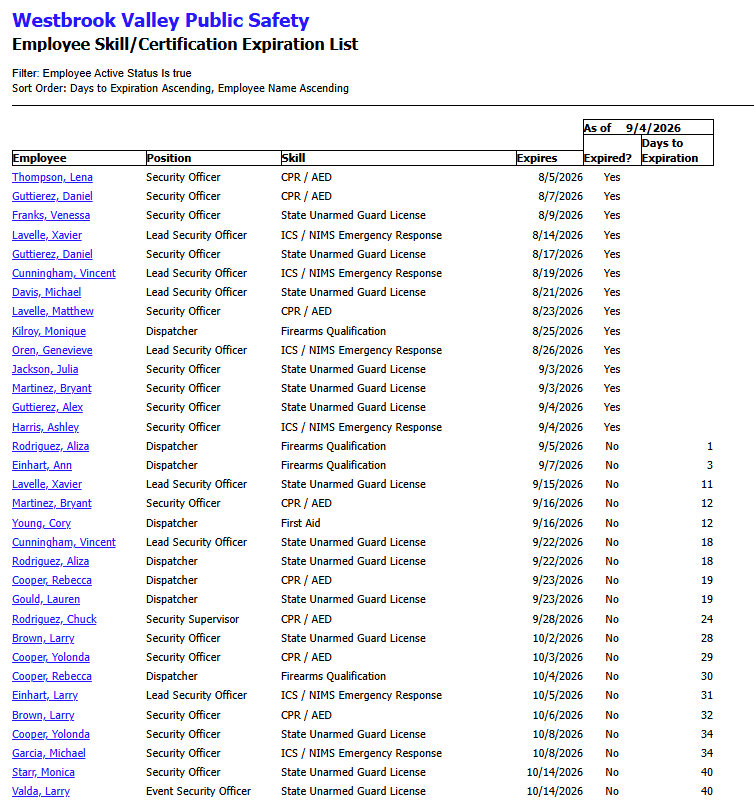
Guard cards, CPR, de-escalation and restraint training, firearms qualifications, gaming licences, airside badges. Record each one against the individual with an acquisition date and an expiry date, and set the warning period once per certification so it applies to everyone who holds it.
Shifts can require a certification, and when you build an open-post opportunity you can narrow the candidate pool by required skill, allowed position and authorized site — so only qualified people appear.
Then run the Employee Skill/Certification Expiration List. It shows what has lapsed and what is coming due, which turns a recurring compliance scramble into a report on a calendar. Most teams run it weekly.
Time and attendance
Confirming the post was actually staffed
Staff punch in and out against their assigned shift, either from a virtual time clock installed at the site or from the app on their own phone.
Each site carries up to three geo-fence circles — a latitude, longitude and radius, with the radius in feet — and a punch is accepted if it falls inside any of them, which handles a campus with separate gate and dock entrances. Coordinates calculate from the site address rather than being looked up by hand. Shifts can carry their own boundaries on top of the site’s, and punching can be restricted to specific network addresses where people clock in over site Wi-Fi.
This is where a dispersed operation gains most: across a parks system or a multi-campus district, a punch from the wrong site is refused without anyone having to check. Geo-fences apply to phone punches — a time clock fixed at the site is trusted by virtue of where it sits. Schedulers watch punch activity live, and planned-versus-actual reporting covers any date range.
What you get out of it
- Scheduled start and end beside the actual punch, with the variance
- Punch records grouped by site for reconciling hours
- An audit trail of who edited a punch and when
- Printable timesheets from recorded hours, with a signature line
Enforcement is switched on under Employee Access — the site record defines the boundary, the setting decides whether it applies.
Filling an open post
Covering a gap, with a record of how you did it
Four ways a post gets filled
An open shift opportunity carries a fulfillment method, and it decides what your staff experience.
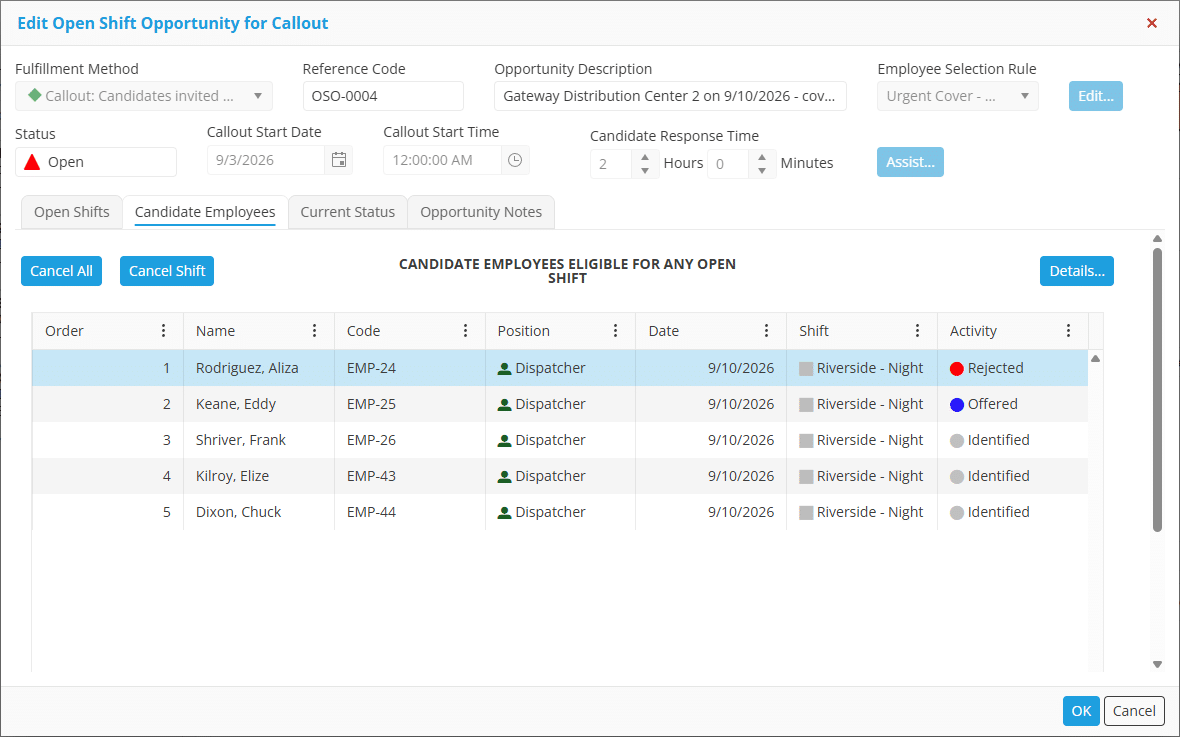
Callout contacts candidates one at a time, in list order, each with a response window you set — sequential by design, so the offer is orderly and traceable. Shift Bidding offers the post to everyone eligible at once and collects bids, which suits an event you know about six weeks out.
Select Employee and Auto Schedule contact nobody — you assign from the candidate list yourself. Reaching out automatically is a tick-box either way; leave it off and the system still tracks every state while you make the calls.
What you can show afterwards
Every candidate carries a recorded state — Identified, Contacting, Offered, Accepted, Rejected, Expired, Assigned. Contact goes out by SMS, in-app notification or automated voice call; email is not a callout channel.
Accepting is not the same as being scheduled. Someone who accepts sits at Accepted, and the assignment exists once their state becomes Assigned.
The whole sequence is timestamped and stays on the record — the artifact you produce when someone asks who was offered the hours. Open shift opportunities are enabled per account, so ask for them.
Selection rules, and how far they go
A selection rule decides who is eligible. Out of the box you configure that yourself: available to work, no conflicting assignment, within daily and work-period hour limits, home site matches, authorized for the site, and narrowed by allowed position and required certification. Candidates are then listed in the order the rule produced them — there is no scoring — so if order matters for fairness, ordering logic is the conversation to have.
Departments ask us for all sorts of it: ordering by accumulated overtime, seniority as a tiebreak, declines charged against a rotation, voluntary offers escalating to mandatory, a rotational list carried across callouts, cascading through positions, minimum rest between shifts.
We are not going to tell you on a web page which of those is standard and which is not, because there is no industry-wide standard for any of it — every organization defines an overtime hour and a charged decline differently. Some of what you need is already there, some is configuration, some is development, and we work it out against your written procedure before you commit to anything. Where a rule follows a published standard many operations share, we will sometimes build it once, spread the development cost across the organizations that need it, and include it in the subscription.
Overtime and reporting
Know the number before the period closes
Selection rules exclude anyone whose hours including the shift in question would exceed a daily or work-period limit, so prevention happens at the point of assignment. After that it is reporting, and Snap Schedule ships more than sixty standard reports.
Five earn their place in a security operation:
- Employee Activity Summary — hours per person, split regular and overtime
- Shift Coverage By Position — assigned against required, with variance, by site and date. A By Skill/Certification version measures the same grid by qualification
- Recorded Vs. Planned Shift Work Hours by Location — scheduled beside punched, per site
- Open Shift Opportunity Details — an opportunity’s shifts and its ordered candidate list
- Daily On Call List — who is on call, with phone numbers, built to be printed
Getting hours to payroll
Export to Payroll builds a file in the layout your payroll system expects, ready to run each pay period.
The Snap Schedule 365 REST API (v2, generally available) exposes scheduling data for an HRIS sync or a data warehouse feed built by your team or ours. More on reporting and analytics →
The staff side
What your officers see on their phone
Their schedule
Current and upcoming assignments, co-worker shifts where you allow it, and a notification when something changes. You control what each person sees.
Open posts
Callout offers and bid invitations arrive on the phone and are answered from it, flowing straight back to the opportunity with no re-keying.
Time off and trades
Requests with day, time and reason. Shift trades and give-aways, with or without approval, limited to the same position, team or site if you want.
Punching in and out
Against the assigned shift, with GPS coordinates recorded and geo-fence enforcement wherever you have configured it.
Time cards
Planned against actual hours for the current, previous or next pay period, including overtime, on-call and time off, with sign-off.
Messaging
Messages targeted at whoever is working a given shift, site, position or certification, with read confirmation and a full history.
Product tour
See it running

A walk through the scheduler: building a rotation, spotting a coverage gap against the posting sheet, and opening a callout to fill it.
If you would rather see your own sites than a demo database, that is what the personalized demo is for.
Scope
What Snap Schedule is, and is not
Business Management Systems has built workforce scheduling software since 2008, across public safety, education, healthcare, utilities, transportation and manufacturing. Snap Schedule schedules people. It is not a guard-operations platform, and knowing that early saves everyone an evaluation:
- No guard tours or checkpoint scanning, and no proof that a round was walked
- No incident reporting forms or case management
- No client portal, contract invoicing or profit-by-contract reporting
- No screening, credentialing or badging system — it schedules the officers, it does not run a security programme
Teams that need those usually already own a system for them, and Snap Schedule runs alongside it as the scheduling engine.
Go deeper
Related reading
Questions we get
Frequently asked questions
Can it schedule security staff at every campus in a school district?
Yes, and it is the case the coverage model was built for. Each campus is a location with its own authorized staff list. A task requirement pattern says how many people that campus needs in each time window, so an elementary school on one bell schedule and a high school on another are described separately rather than forced into a common shift. A plan applies those patterns on a repeating cycle, and an override replaces a single date for an early release, an in-service day or a summer programme. Coverage analysis then compares required against scheduled, campus by campus.
Can we stop people being scheduled at sites they are not cleared for?
Yes, and this one is enforced rather than advisory. Each site is a location, and on the location record you tick the staff authorized to work there. Anyone not authorized is genuinely excluded from candidate lists, and assigning them directly raises a conflict flag. Everyone also has one site marked as home, which drives several scheduling filters, so make sure nobody is left without one.
Can we see the schedule as a duty roster rather than a grid?
Yes. Roster View presents the schedule the way a duty roster reads, by area and tour, with one column per post. A district ties a location to the shift categories that run there, and a section is a roster slot within it, carrying the positions allowed to fill it, its tags, how many slots it shows, and whether notes are allowed. Staff are placed by home location and team rather than by where a shift was created, and a dated temporary deployment moves someone into another area’s columns without disturbing the standing roster. Roster View is enabled through an account setting rather than purchased separately, so ask for it during your demo. It shows assignments rather than recruitment, so it does not display open shifts or callouts, and roster notes are held in custom storage.
Does it track guard cards, licences and training expirations?
Yes. Credentials are held against the individual with acquisition and expiry dates, and the warning period is set once per certification type rather than per person. Shifts can require a certification, and open-post candidate pools can be narrowed by required skill. The practical control is the Employee Skill/Certification Expiration List report, run on a schedule, which shows what has lapsed and what is coming due. Worth knowing how the flags behave: the three certification validation checks ship switched off, and once enabled they are advisory flags rather than blocks, with candidate selection checking whether someone holds a credential rather than whether it is current. If you need a lapsed credential to actually prevent an assignment, that is something we build for you.
Can we confirm someone punched in at the site rather than from home?
Each site can carry up to three geo-fence circles, each a latitude, longitude and radius, with the radius specified in feet. A punch is accepted if it falls inside any of them, so a campus with several entrances is straightforward. Coordinates calculate from the site address rather than being looked up by hand, and shifts can carry their own boundaries in addition to the site’s. Geo-fences apply to punches from a phone; a virtual time clock installed at the site is exempt, because it is trusted by virtue of where it sits. Enforcement is switched on under Employee Access settings.
Does the automated callout contact everyone at once?
Not within the Callout method. Callout is sequential by design: one candidate at a time in list order, each with a response window you set, advancing automatically when a window expires. If you want simultaneous notification, that is Shift Bidding, which offers the post to everyone eligible at once and collects bids. Two further methods, Select Employee and Auto Schedule, contact nobody and let you assign from the candidate list yourself. Contact goes out by SMS, in-app notification or automated voice call; email is not a callout channel.
Will it order callouts by overtime hours or seniority?
Not by default. A selection rule screens for eligibility, and candidates are listed in the order the rule produced them rather than ranked by suitability — there is no scoring. Ordering by accumulated overtime or seniority is separate logic, and whether it is already available, a configuration change, or development work depends on how your procedure defines it. There is no industry-wide standard here: organizations differ on worked hours versus offered hours, whether a decline is charged, which classifications share a list, and when the clock resets. We scope it against your written procedure and tell you what it involves before you commit. Where the requirement comes from a published standard many operations share, we may build it once, spread the cost across the operations that need it, and include it in the subscription.
Can it handle 24/7 rotations across several sites?
Yes. Define the shifts and squads, then apply a repeating pattern that generates forward, so future periods exist without rebuilding anything. Fixed days and nights, 4-on-4-off, Panama, 2-2-3, compressed weeks, straight 8s and mixed 8-and-12 arrangements are all buildable. Sites are handled as locations with their own authorized staff lists and their own post requirements, so a multi-site operation is the ordinary case rather than an edge case.
Is Snap Schedule HIPAA compliant for hospital security teams?
No, and it is better to be direct than to hedge. The Services are designed for ordinary workforce scheduling information and are not offered or intended as a system of record for HIPAA related data. BMS does not act as a business associate under HIPAA, and the Services are not offered as a HIPAA-compliant system of record. What the software holds is who is scheduled where, their certifications, their hours and their punches.
Does it integrate with our payroll or HR system?
Export to Payroll builds a data file in whatever layout your payroll system expects — you define the columns, their order, formats and widths once, then run it each period as CSV, tab-delimited or fixed-width. Starting-point formats named for ADP Workforce Now, Workday and SAP are included, though they are editable templates rather than guaranteed matches, so expect to adjust one and test a short export before a live run. Separately, the Snap Schedule 365 REST API version 2 is generally available and exposes scheduling data for an integration your team or ours develops. There are no prebuilt vendor connectors.
Is this guard tour or patrol management software?
No. Snap Schedule schedules the security force. It has no checkpoints or scan points, no incident report forms, no client portal and no contract invoicing. For an in-house team with no client to invoice, the scheduling half is usually the whole requirement; if your operation also needs patrol verification, Snap Schedule runs alongside the system you use for that.
How many sites and staff does one license cover?
You license schedulers rather than headcount. A single scheduler license covers an unlimited number of staff across an unlimited number of sites, so adding a campus, a building or a park does not change the license count. Employee app access is a separate add-on and volume discounts apply. Current figures are on the pricing page.
See it against your own posting sheet
Bring your sites, your rotation and your certification rules, and we will show you the schedule you would actually run — not a demo database. Fifteen minutes in, you will know whether this fits.